
Shortcut Maker
Rushikesh KamewarPersonalization
3.41.55K Reviews
- Version
- 5.0.7
- Installs
- 10.00M
- Age Rating
- Everyone
Screenshots
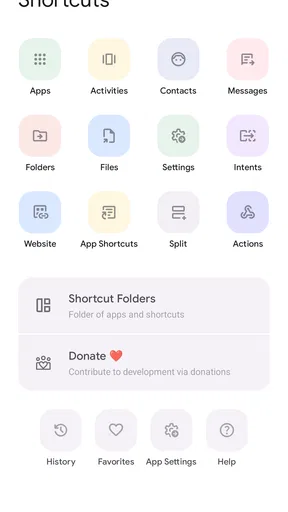
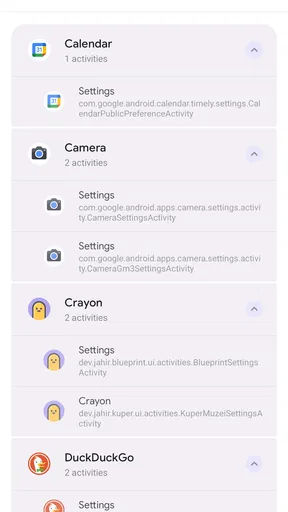
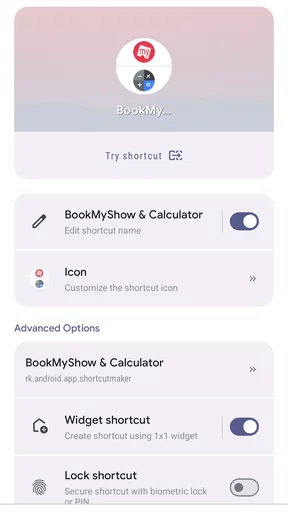
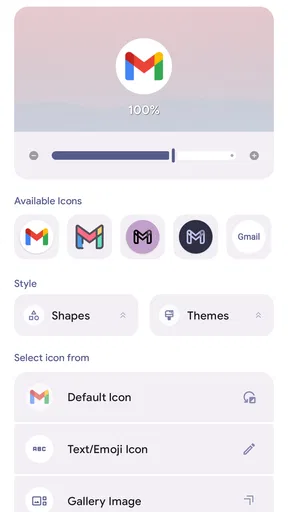
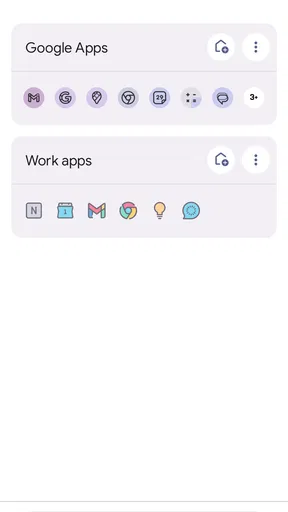
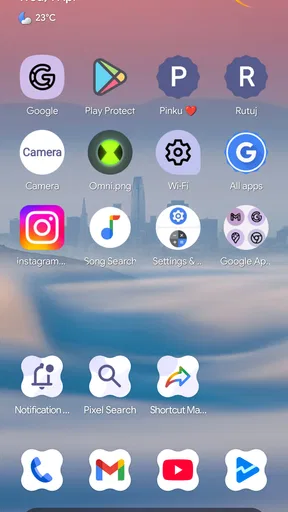
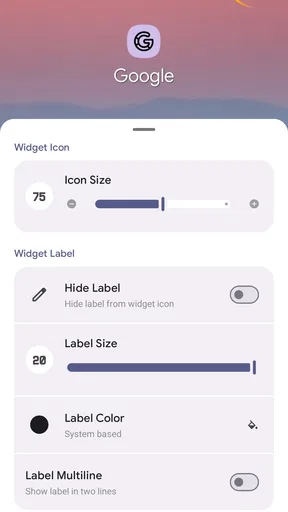
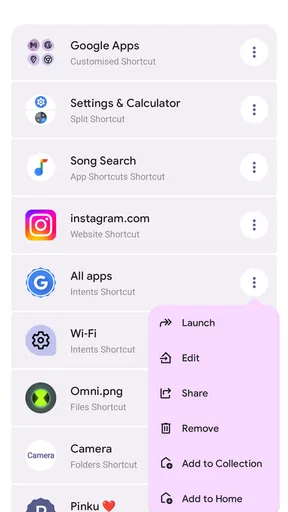
Our Review of Shortcut Maker
 Analysis by Appyee
I tend to notice the same problem after using an Android phone for a while: the apps are there, the settings are there, and the useful actions are there, but reaching them can take too many taps. Shortcut Maker is built around solving that small but persistent annoyance. It lets me create home-screen shortcuts for things I want to reach quickly, including destinations that may otherwise be buried inside an app or system menu.
That sounds modest, and it is. This is not a full launcher replacement or an automation suite. It is a focused personalization app from developer Rushikesh Kamewar, and its value depends on whether you want more control over the way your phone is arranged. I found it most useful when I treated it as a precision tool rather than something that should redesign my entire device.
What to consider before choosing it
The first question is not whether Shortcut Maker can create shortcuts. The more useful question is whether you regularly lose time opening the same destination through several layers of menus. If the answer is yes, the app can make your phone feel noticeably more direct. If you already use a launcher with detailed shortcut support, its role may be much smaller.
I would also consider how much visual organization matters to you. A shortcut is only helpful when its name and icon make sense at a glance. Creating many vague or duplicate entries can turn a tidy home screen into a confusing grid. The app gives you a way to place access points where you want them, but it does not decide the best layout for you.
Shortcut Maker belongs to the personalization side of Android rather than productivity in the traditional sense. That distinction matters. It does not replace a task manager, calendar, password manager, or automation tool. Instead, it changes how you enter the tools you already use. For me, that made it particularly useful for actions I performed often but not often enough to justify a complicated automation setup.
The app is free to install and is marked for Everyone, which makes it easy to try without committing money first. Optional in-app purchases range from $0.99 to $129.99 per item, so I would still check the purchase screen carefully before confirming anything. The basic idea is simple enough that I would not install it expecting to pay before discovering whether it actually improves my routine.
It supports Android 9 and later, so compatibility is broad for people using relatively recent phones. The current version is 5.0.7. I would still judge the experience on the phone in front of me, because shortcut behavior can be affected by the launcher and by the phone maker’s version of Android. That is not a reason to avoid it; it is simply a reminder that home-screen features do not behave identically on every device.
My first practical test
When I assess an app like this, I start with one repeated task instead of filling the home screen with shortcuts. For example, I might choose a settings destination that I open when troubleshooting a connection, checking battery behavior, or adjusting a permission. I create one shortcut, give it a clear label, place it near the other tools I use, and then see whether it saves effort over several days.
This small test reveals more than creating a dozen shortcuts at once. If I still hesitate because the icon is unclear, the shortcut has not really solved the problem. If I forget it is there, the destination may not be important enough to deserve a permanent place. Shortcut Maker works best when each shortcut has a clear job.
A useful habit is to name shortcuts by the action you want to perform rather than by the technical screen behind them. “Check battery use” is more helpful at a glance than a label that only describes an internal settings page. This is one of the app’s quiet strengths: it encourages me to think about access in terms of behavior, not just app names.
Where it wins over ordinary home-screen habits
The biggest advantage is directness. Normally, I may open an app, navigate to a section, open a menu, and only then reach the function I need. A shortcut can move that destination closer to the surface. The time saved per use may be small, but repeated friction is exactly the kind of thing that makes a phone feel less personal.
It is also more flexible than simply placing app icons on the home screen. An app icon usually takes me to the app’s main starting point. Shortcut Maker is useful when the starting point is not where I want to begin. That difference is especially noticeable with apps that contain several separate areas or with system settings that are not exposed as normal standalone apps.
Another strength is that I can organize shortcuts around my own routines instead of the developer’s menu structure. I might keep communication tools on one screen, device-maintenance destinations on another, and shortcuts for a specific daily routine in a small cluster. This does not require replacing my launcher, which makes the change less disruptive than moving to a completely new home-screen system.
The real benefit is not having more icons; it is removing one repeated decision from a task I already understand. That is why the app can feel surprisingly useful in narrow situations. It does not make me more productive in every area, but it can make a few annoying routes much shorter.
A realistic everyday example
Imagine that I am leaving home and want to check a device setting before switching to mobile data. With the usual approach, I open Settings and search or scroll until I find the right area. After creating a shortcut, I can place that destination alongside my travel-related apps. The shortcut does not perform the change for me, but it gets me to the relevant place without making me remember where Android has hidden it this time.
Another example is a family member who often needs one particular screen but does not use the surrounding features of the app that contains it. A carefully named shortcut can reduce the number of instructions I have to give. Instead of saying “open this app, tap this menu, then choose that option,” I can point to a dedicated home-screen entry. That is a practical accessibility improvement even though the app is not presented as an accessibility tool.
I also like the idea of temporary shortcuts. If I am troubleshooting a phone, preparing for a trip, or managing a new setup, I can create a few direct entries for the destinations I expect to revisit. Once the project is finished, I can remove them and keep the everyday layout clean. This temporary-workspace approach is more sensible than permanently changing the launcher for a short-lived need.
The details that require patience
The app’s focused nature also creates its main limitation: I still have to understand what I am making. A shortcut is not automatically a complete workflow. It may take me to a useful destination, but I remain responsible for the final taps and choices. Anyone expecting one-touch automation, scheduled actions, or a chain of operations will probably find the experience too basic.
There is also a discovery issue. Android contains many possible destinations, and the most useful one may not be obvious from its technical name. I found that creating a good shortcut can involve a little trial and error: choose a candidate, place it on the home screen, open it, and decide whether it lands exactly where expected. That is manageable, but it is not as effortless as dragging a familiar app icon.
Home-screen clutter is another genuine risk. Because the app makes it easy to add access points, I can quickly create more shortcuts than I actually need. I recommend grouping them by purpose and removing anything that has not earned its space after regular use. A small collection of well-labeled shortcuts is far better than a page full of nearly identical icons.
Visual consistency may also depend on the phone and launcher. Even when a shortcut works correctly, its icon or label may not blend perfectly with the rest of the home screen. Users who care deeply about a uniform theme may need to spend extra time arranging and naming entries. For me, that is acceptable when the destination is genuinely useful, but it weakens the appeal for someone seeking a polished visual redesign.
When a different kind of app is better
If your main goal is a new home-screen layout, a dedicated launcher is the more natural choice. Launchers are designed around app grids, gestures, folders, search, and broader visual control. Shortcut Maker can complement one, but it is not a substitute for that entire category.
If you want actions to happen automatically, look toward automation tools instead. Those are better suited to rules such as changing behavior when you arrive somewhere, responding to a trigger, or combining several steps. Shortcut Maker is the better fit when you want a clearly visible entry point and prefer to remain in control of what happens after opening it.
Widgets may also be preferable when you need information on the home screen rather than a route into another screen. A widget can show status or expose controls without requiring a separate shortcut. On the other hand, widgets can take more space, and they may not exist for the exact destination you want. In that gap, a compact shortcut can be the cleaner solution.
Finally, if you only open a handful of apps and never explore deeper settings, the app may not earn a permanent place on your phone. Its value grows with repeated friction. Someone who is already satisfied with the default launcher should not install it simply because customization sounds appealing.
What switching really involves
Trying Shortcut Maker is relatively low-risk because it does not require me to abandon my current launcher or reorganize the entire device. I can add one shortcut, test it, and remove it if it does not help. That makes the cost of switching mostly about setup time and attention rather than learning a new phone interface.
The larger cost appears when I create a shortcut collection without a plan. Then I have to clean up labels, decide which entries belong together, and remember what each icon does. I avoid that by starting with a single recurring problem. If that shortcut remains useful, I add another related one; if not, I stop there.
I would also be careful when sharing a phone with someone else. A shortcut label that makes sense to me may be confusing to another person, especially if it leads to a technical settings area. Clear wording matters more than clever wording. A short description of the destination or action is usually the safest choice.
The app has been available since January 8, 2020, and its reach is substantial, with over 10 million installs. Its average rating is 3.4 from around 24 thousand ratings, alongside roughly 1.5 thousand written reviews. I read that combination as a sign that the idea is useful to many people but not universally smooth. That matches my own view: the app can solve a very specific annoyance, yet the experience depends heavily on expectations, launcher behavior, and how carefully shortcuts are organized.
My recommendation for different users
I recommend Shortcut Maker to Android users who repeatedly navigate to the same buried destinations and want a visible, lightweight way to reach them. It is especially appealing if you like your existing launcher and do not want a full interface replacement. It is also a good option for building temporary home-screen workspaces around troubleshooting, travel preparation, or a recurring personal routine.
I would skip it if you want automation, a complete launcher makeover, or a dashboard that displays live information. Those needs belong to other app categories. I would also skip it if you rarely use anything beyond ordinary app icons, because adding shortcuts would probably create more maintenance than convenience.
My best advice is to judge it with one concrete shortcut. Choose a destination you open several times, label it in everyday language, place it where your thumb naturally reaches, and use it for a week. If that small change makes the phone feel easier, expand carefully. If it does not, there is no reason to force the app into your routine.
Overall, I see Shortcut Maker as a practical personalization utility rather than a dramatic phone upgrade. Its strongest quality is precision: it lets me bring a particular destination forward without replacing everything around it. The trade-off is that I have to choose, name, and manage those shortcuts thoughtfully. For the right user, that is a fair exchange, and the free starting point makes the experiment easy.
My final verdict is positive but specific. I would recommend it to people who can already name the exact screen or function they want to reach faster. I would not recommend it as a general-purpose productivity solution. Used selectively, it removes small points of friction and gives an ordinary Android home screen a more personal logic. That is a modest improvement, but in daily phone use, modest improvements repeated often can be the ones I notice most.
Verdict
Strengths of Shortcut Maker
- Creates shortcuts to hidden activities, settings, and app functions.
- Offers useful customization for shortcut names and icons.
- Can launch system actions faster than navigating through menus.
- Supports shortcuts for installed apps and selected system components.
- Lightweight design with a simple interface and low storage usage.
Limitations of Shortcut Maker
- Some shortcuts may not work correctly on certain Android versions.
- Advanced options can be confusing for users unfamiliar with Android activities.
- Changing system shortcuts may require extra permissions or access settings.
- Results vary depending on the phone manufacturer and installed software.
- The app is mainly useful for power users, not casual Android users.
Similar Picks in This Category
View All
Microsoft SwiftKey AI Keyboard
SwiftKey4.3

Wallpapers
Google LLC4.1

Zedge™ Wallpapers & Ringtones
Zedge4.7

Yandex Browser with Alice AI
Direct Cursus Computer Systems Trading LLC4.3

Ringtone Maker:create ringtone
Big Bang Inc.4.7

Fonts Keyboard
Fonts Keyboard3.9
Frequently Asked Questions
What is Shortcut Maker and what can I use it for?
Shortcut Maker is an Android utility that lets you create personalized shortcuts to applications, activities, settings, files, contacts, and other functions available on your device. During testing, it was particularly useful for reaching hidden or less accessible system screens without navigating through several menus. It is designed for customization and convenience rather than replacing the original apps or changing the operating system itself.
Does Shortcut Maker require root access or special permissions?
In most cases, Shortcut Maker works without root access, which makes it accessible to ordinary Android users. However, the shortcuts you can create depend on the Android version, the phone manufacturer, and the permissions granted to the app. Some activities may be restricted by the system, and certain features can require access to files, contacts, or other device information. Review each permission request carefully before accepting it.
Can Shortcut Maker create shortcuts for hidden Android settings and activities?
Yes, one of Shortcut Maker’s main advantages is the ability to browse available activities and create shortcuts for settings or app functions that may not have their own visible icon. This can include specific system configuration pages and internal screens. Availability is not guaranteed on every phone, though, because manufacturers and Android updates may rename, remove, or block certain activities.
Is Shortcut Maker safe to use on an Android phone?
Shortcut Maker is generally safe when downloaded from a reputable source and used with sensible permissions. Creating a shortcut does not normally modify system files or require root access. Nevertheless, some shortcuts can open advanced settings, and changing those settings without understanding them may affect your device experience. Avoid granting unnecessary permissions, and remove shortcuts that no longer work after an Android or manufacturer update.
Will shortcuts created with Shortcut Maker continue working after updates or app removal?
Shortcuts usually remain on the home screen until you delete them, but their reliability depends on the destination they point to. A shortcut linked to an installed application or system activity may stop working if that app is removed, renamed, disabled, or updated. Android and manufacturer software updates can also change internal activity names. If a shortcut fails, recreate it or remove it rather than assuming the app is damaged.
